Installation
Install and configure Apache Phoenix clients and server components.
Installation
To install a pre-built Phoenix, use these directions:
- Download and expand the latest
phoenix-hbase-[hbase.version]-[phoenix.version]-bin.tar.gzfor your HBase version. - Add
phoenix-server-hbase-[hbase.version]-[phoenix.version].jarto the classpath of all HBase region servers and masters, and remove any previous version. An easy way is to copy it into the HBaselibdirectory. - Restart HBase.
- Add
phoenix-client-hbase-[hbase.version]-[phoenix.version].jarto the classpath of any JDBC client.
To install Phoenix from source:
- Download and expand the latest
phoenix-[phoenix.version]-src.tar.gzfor your HBase version, or check it out from the main source repository. - Follow the build instructions in
BUILDING.mdin the root directory of the source distribution/repository to build the binary assembly. - Follow the instructions above, but use the assembly built from source.
Getting Started
Want to get started quickly? Take a look at our FAQs and quick start guide here.
Command Line
A terminal interface to execute SQL from the command line is now bundled with Phoenix. To start it, execute the following from the bin directory:
$ sqlline.py [zk quorum hosts]To execute SQL scripts from the command line, you can include a SQL file argument like this:
$ sqlline.py [zk quorum hosts] ../examples/stock_symbol.sql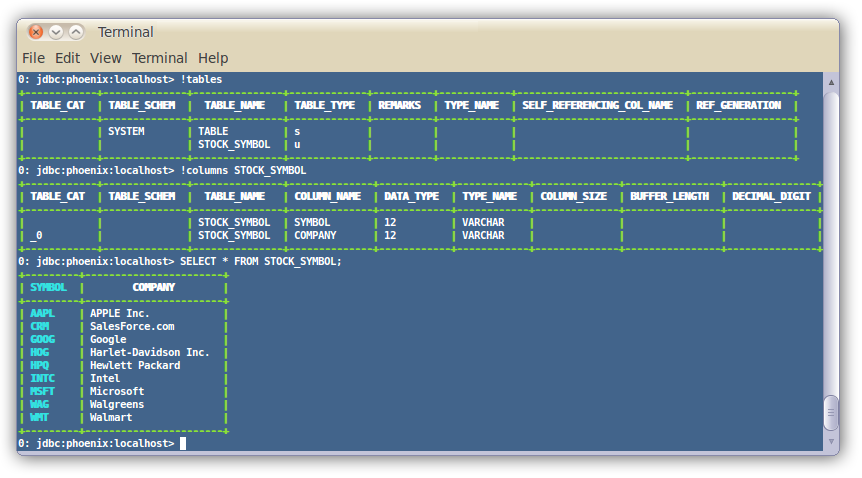
For more information, see the manual.
Loading Data
In addition, you can use bin/psql.py to load CSV data or execute SQL scripts. For example:
$ psql.py localhost ../examples/web_stat.sql ../examples/web_stat.csv ../examples/web_stat_queries.sqlOther alternatives include:
- Using our map-reduce based CSV loader for bigger data sets
- Mapping an existing HBase table to a Phoenix table and using the UPSERT SELECT command to populate a new table.
- Populating the table through our UPSERT VALUES command.
SQuirreL SQL Client
If you'd rather use a client GUI to interact with Phoenix, download and install SQuirrel. Since Phoenix is a JDBC driver, integration with tools such as this are seamless. Here are the setup steps necessary:
Remove prior phoenix-[_oldversion_]-client.jar from the SQuirreL lib
directory, then copy phoenix-[_newversion_]-client.jar there (_newversion_
should match the Phoenix server jar used with your HBase installation).
Drivers -> New Driver).In Add Driver, set Name to Phoenix, and set the Example URL to
jdbc:phoenix:localhost.
Enter org.apache.phoenix.jdbc.PhoenixDriver into the Class Name field and
click OK.
Switch to Alias tab and create a new Alias (Aliases -> New Alias).
In the dialog, use Name: any name, Driver: Phoenix, User Name: anything,
Password: anything.
Construct URL as follows: jdbc:phoenix:[zookeeper quorum server]. For
example, to connect to local HBase use jdbc:phoenix:localhost.
Press Test (it should succeed if everything is set up correctly), then press OK to close.
Double-click your newly created Phoenix alias and click Connect. You are now ready to run SQL queries against Phoenix.
Through SQuirreL, you can issue SQL statements in the SQL tab (create tables, insert data, run queries), and inspect table metadata in the Object tab (for example, list tables, columns, primary keys, and types).
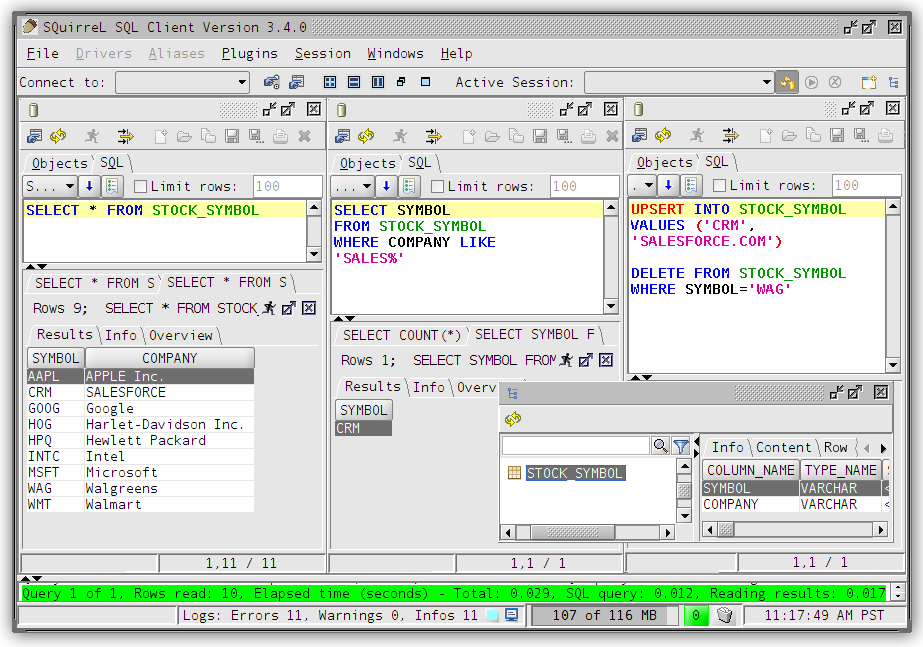
Note that most graphical clients that support generic JDBC drives should also work, and the setup process is usually similar.
Samples
The best place to see samples are in our unit tests under src/test/java. The ones in the endToEnd package are tests demonstrating how to use all aspects of the Phoenix JDBC driver. We also have some examples in the examples directory.